VPN for Parents: How to Restrict Content and Set Up Safe Wi‑Fi for Schoolchildren
The Complete 2026 Guide: How parents can choose and configure VPNs, DNS filtering, and home routers, create child profiles and schedules, protect school devices, avoid common mistakes, and implement safe Wi‑Fi for kids without sacrificing speed or privacy.
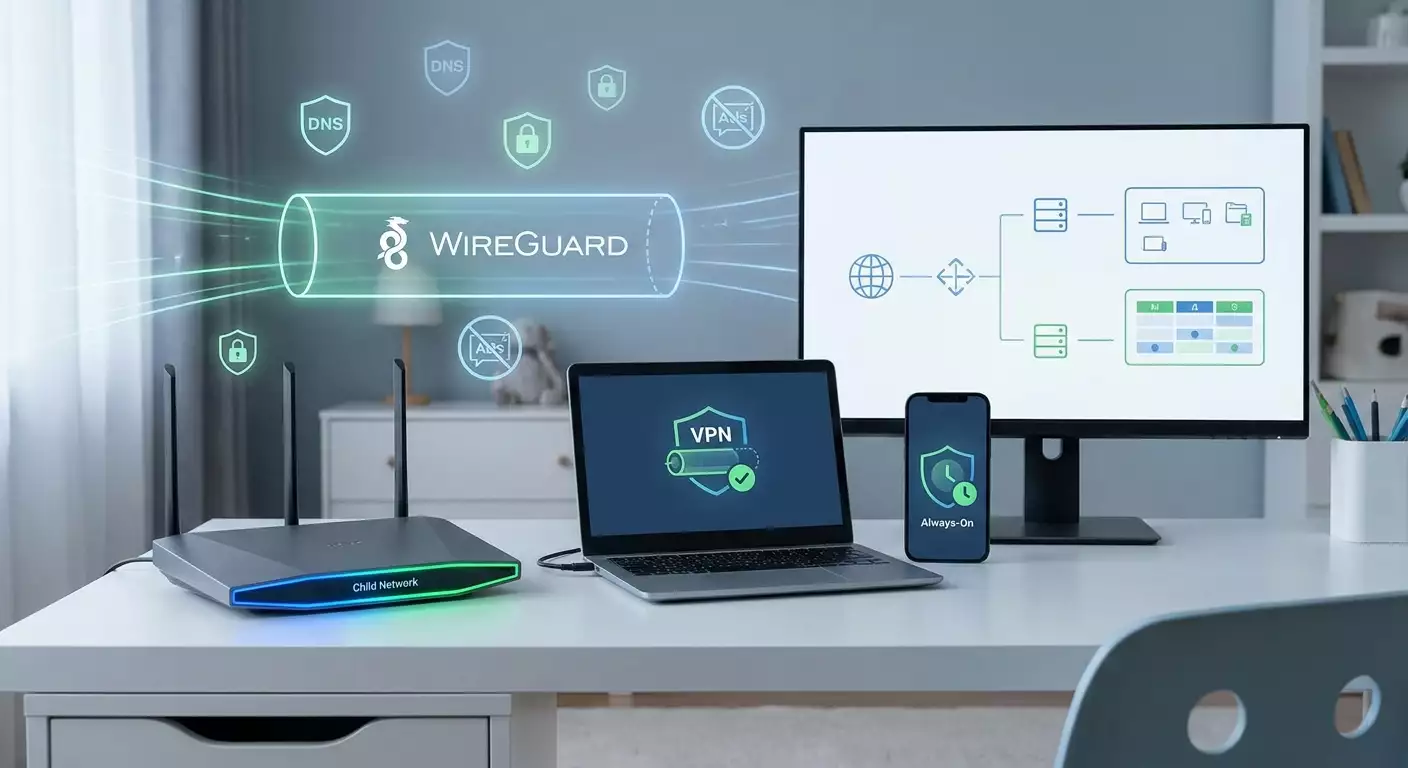
Content of the article
- Introduction: why parents need to think like network architects
- Basics: how vpns work and why they matter for parents
- Deep dive: threat models and age-based policies
- Practice 1: home vpn gateway on router—unified rules for the whole house
- Practice 2: vpn and restriction profiles on children’s devices
- Practice 3: dns filtering and blocklists — quick and effective
- Practice 4: time, location, and learning context policies
- Practice 5: architecture: "personal vpn server + home router"
- Practice 6: setting up home wi‑fi for kids — segmentation, priorities, security
- Common mistakes and how to avoid them
- Tools and resources: what to use in 2026
- Case studies and outcomes: how families implement safe wi‑fi in practice
- Faq: tough questions from parents
- Engineering checklists and frameworks
- Conclusion: a systematic approach outweighs any single app
Introduction: Why Parents Need to Think Like Network Architects
The internet today is far more than just a space for learning and socializing for kids—it’s a constant environment. Home Wi‑Fi, school networks, mobile internet, guest hotspots, consoles, and TVs—all these can expose children to unwanted content, scams, or cyberbullying. Parenting control isn’t just about blocking websites anymore; it’s about layered protection governed by clear rules, explained transparently to your child while respecting their privacy.
In this guide, you'll get a clear, systematic understanding of how VPNs and DNS filtering work, the differences between protocols, how to design access policies based on age and schedule, and what to consider at the router, device, and service levels. We’ll walk through step-by-step setups—from configuring a home VPN gateway to profiles on iOS and Android, from AdGuard Home and NextDNS to scheduling and geo-zones. We'll highlight common pitfalls, the best tools of 2026, and real-life case studies. By the end, you'll have a repeatable method, checklists, and solutions for families with one child or several.
Basics: How VPNs Work and Why They Matter for Parents
What is a VPN in Simple Terms
VPN (Virtual Private Network) encrypts the data flow between your device and a server. It creates a secure tunnel inaccessible to outsiders on the same network, your ISP, or public Wi‑Fi. Your online address shows the server’s IP instead of your home's. For parents, this matters for three key reasons: protection on public networks, consistent rules across all devices, and centralizing family policies through a single internet exit point.
How VPN Differs from DNS Filtering
DNS filtering blocks domains during the name resolution stage (like blocking adult.example). It’s a lightweight, quick way to block content but doesn’t hide the traffic itself and can't help if access happens via IP or through in-app proxies. VPN provides encryption and centralized control but without domain lists, it doesn’t fully address content filtering. The best approach is a combined system: a VPN gateway plus DNS filtering.
Key Protocols and What to Choose
- WireGuard: modern, fast, minimalist, perfect for home routers and smartphones. It reconnects quickly when switching between Wi‑Fi and LTE.
- OpenVPN: flexible, widely compatible, a bit slower on low-powered CPUs but has many ready clients and integrations.
- IKEv2/IPsec: resilient to connection drops, great for iOS and macOS, prefers stable networks, often simpler for MDM setups.
- L2TP/IPsec and SSTP: legacy options for older systems or corporate networks with strict firewalls, but not recommended for the future.
The Three Layers of Family Protection
- Network (router, access point): unified rules, schedules, guest device isolation, prioritizing educational traffic.
- Names (DNS): category filtering, block and allow lists, event logs, blocking DoH/DoT circumvention.
- Device (profiles, MDM): app restrictions, screen time controls, geo-zones, local PIN protection, and blocking network changes.
Knowing each layer addresses specific risks helps avoid overloading one tool and prevents a false sense of security.
Deep Dive: Threat Models and Age-Based Policies
Threat Model for Schoolchildren in 2026
- Content: adult content, violence, toxic communities, pseudotherapy, gambling.
- Communications: cyberbullying, grooming, phishing in messengers and games.
- Finance: uncontrolled donations and in-app purchases, scam subscriptions.
- Technical: MITM attacks on public Wi‑Fi, tracking by trackers, account compromises.
- Bypassing: free VPNs, in-app proxies, browsers with built-in bypass, private DNS in clients.
Age-Based Access Policies
- 7–10 years: whitelists only, YouTube Kids, closed family messengers, devices locked from installing apps, scheduled internet access.
- 11–13 years: category filters, approved messengers, cybersecurity education, social media and gaming time limits, approval for new apps.
- 14–17 years: more trust, transparent policies, activity logs with consent, financial literacy education, partial independence with clear boundaries.
Principles of Ethical Control
- Transparency: the child knows what is filtered and why, where logs are and how to review them together.
- Minimum necessary: eliminate risks without suffocating autonomy. Show how to request access and get feedback.
- Role modeling: parents maintain their own digital hygiene.
- Rule reassessment: update age policies every 6–12 months.
Practice 1: Home VPN Gateway on Router—Unified Rules for the Whole House
When You Need It
If you have many devices (laptops, tablets, consoles, TVs) and want centralized control, install VPN on your router. This provides a single outbound IP, consistent policies, and zero configuration on child devices.
Platform Choices
- Keenetic: user-friendly presets, parental control, WireGuard and IKEv2 out of the box.
- MikroTik: flexible, scripting, powerful firewalls; great but steeper learning curve.
- OpenWrt: highly customizable, packages for WireGuard, AdGuard Home, SQM; excellent for enthusiasts.
Architecture Overview
ISP — WAN router — VPN client on router — LAN and Wi‑Fi networks (main and kids VLAN/SSID) — DNS filter (local via AdGuard Home or cloud NextDNS/Quad9) — devices.
Step-by-Step: WireGuard on OpenWrt
- Update OpenWrt firmware, install wireguard-tools and luci-proto-wireguard packages.
- Create WireGuard interface, enter server’s public key, addresses and ports.
- Routing: enable default route via VPN but add PBR (policy-based routing) exceptions, for example, for TV boxes.
- DNS: configure DHCP options to point to local AdGuard Home or external NextDNS profile filtered for kids.
- Create a separate Kids SSID with VLAN, enable client isolation and limit torrent speeds using SQM.
- Firewall: block outgoing traffic to external DoH/DoT ports (443/853) except for your own providers.
Stability Checklist
- Router uptime: schedule reboot every 2–4 weeks.
- Quarterly updates: firmware, blocklists, certificates.
- WireGuard logs: monitor tunnel resets, adjust MTU as needed.
- Backup connection: LTE modem with failover, no VPN bypass.
Practice 2: VPN and Restriction Profiles on Children’s Devices
When You Need It
If your child spends time outside home—in clubs, school, or uses school iPads or personal smartphones—add local VPN and restriction profiles. This ensures protection on mobile and guest networks plus controlled screen time.
iOS and iPadOS
- Create an IKEv2 or WireGuard profile. For IKEv2, use built-in settings; for WireGuard, use the official app.
- Enable "Connect Automatically" and "Switch on Untrusted Networks."
- Set up Screen Time: category limits, allowed contacts, 18+ content restrictions, app installation locked by parental password.
- Disable VPN and DNS changes via configuration profiles or MDM (simple family MDM subscriptions work well).
Android
- Install WireGuard or OpenVPN client, enable "Always-on VPN" and "Block without VPN."
- Use Google Family Link: block app installs, set time limits, content and website filters in Chrome.
- DNS: specify your private DNS server (DoT), restrict changes via work profiles or settings limits.
Windows and macOS
- Windows: use built-in IKEv2 or WireGuard/OpenVPN clients. Microsoft Family options for screen time and content filters, local DNS via group policies in Pro editions.
- macOS: configuration profile for IKEv2, enable "Connect on any network." Family Sharing similar to iOS.
Consoles and TVs
Often don’t support VPN directly. The solution is to route all their traffic through the VPN router via a dedicated VLAN with attached DNS filtering. On smart TVs, disable manual DNS changes and block third-party app installations.
Mini Framework: The "3Ps" for Devices
- Profile: VPN always on, block without VPN.
- Permissions: no rights to change network or DNS, app installs require approval.
- Policies: screen time, content categories, whitelist contacts.
Practice 3: DNS Filtering and Blocklists — Quick and Effective
Choosing an Approach
- Local on router: AdGuard Home on OpenWrt or Docker container on NAS. Pros—full control, cons—requires maintenance.
- Cloud: NextDNS, Quad9 with categories. Pros—quick start, cross-platform; cons—trust in an external provider.
Categories and Priorities
- Adult content, violence, drugs—always block.
- Gambling, betting, piracy—block or require access requests.
- Social media—time limits or scheduled access.
- Games—allowed on schedule and whitelist only.
Step-by-Step: AdGuard Home on OpenWrt
- Install the package, enable listening on port 53 for LAN and 5353 for internal integration.
- Activate secure DoT upstream to your filter provider or encrypted servers with policies.
- Add blocklists: family filters, phishing, trackers. Set whitelists for educational sites.
- Logs: enable anonymization, keep no longer than 30 days, allow export for manual review with your child if needed.
- Create profiles: Kids, Teens, Parents—with different rule sets.
How to Block DoH Bypass
- On the router, block outgoing connections to known DoH hosts and ports 443/853, except your upstreams.
- Enable "DNS sticking" in DHCP: only hand out your local DNS, block other port 53/853 addresses.
- On device profiles, disable DNS changes and enforce firewall DNS interception.
Success Metrics
- Stable speed: latency increase no more than 10–20 ms.
- False positives: no more than one per week, quickly fixed with whitelist entries.
- Transparency: your child understands how to request access to specific sites and gets responses the same day.
Practice 4: Time, Location, and Learning Context Policies
Why Schedules Matter
Kids’ daily rhythms revolve around school, activities, and downtime. The network should support—not hinder—that flow. Schedules resolve conflicts like “not now, but later” without manual admin hassle.
Policy Examples
- Weekdays 7:00–8:00: only kids’ news and educational services allowed.
- Weekdays 16:00–19:00: homework time followed by 1 hour of approved games.
- Weekends 10:00–20:00: extended access but no adult categories.
- Night 21:30–7:00: internet off except emergency contacts and urgent educational portals.
Geo-Zones and Public Networks
- Enable “Always-on VPN” and auto-connect on unfamiliar Wi‑Fi.
- Block unsafe protocols off home: SMB, AirDrop for everyone except family.
- Use a dedicated child eSIM with profiles that block paid subscriptions.
Schedule Template: "SCHOOL-HOME-SLEEP"
- SCHOOL: VPN on, allowed educational domains, messengers limited to class, social networks blocked.
- HOME: family rules, one hour of games, video content with age restrictions.
- SLEEP: total block except calls and SOS.
How to Implement Without Resistance
- Agreement: print the rules, sign together, post visibly.
- Two-week pilot: gather feedback, note issues, adjust.
- Update every 6 months: as your child grows, so do the rules.
Practice 5: Architecture: "Personal VPN Server + Home Router"
Why a Personal Server Helps Parents
A dedicated IP simplifies whitelisting school portals, stabilizes access to banking and educational services, and reduces ban risks from sharing IPs with noisy users. You can apply rules based not just on domains but also on the outbound IP address.
Setup with Personal Server
Your router creates a tunnel to a personal VPN server hosted in a reliable data center. The server runs DNS filtering, routing logic, and, if needed, proxies for certain services. Kids connect to the home Kids SSID and always access the internet from the same “white-listed” IP. Smartphones use the same profile on mobile networks.
One-Hour Implementation
- Rent a personal VPN server from a trusted provider supporting WireGuard and IKEv2, with the option for a dedicated IP.
- Deploy WireGuard via a setup script in 5–10 minutes; create keys for router and devices.
- Run AdGuard Home container or link NextDNS and configure categories.
- Enable tunnel and PBR exceptions on the router, block third-party DNS.
- Create phone profiles with "Always-on VPN" enabled.
Where This Is Especially Useful
- Remote learning: access local educational platforms from abroad.
- Gaming platforms: fewer matchmaking issues and bans due to public VPN IP blacklists.
- Finance services: fewer extra checks when switching networks.
Practice 6: Setting up Home Wi‑Fi for Kids — Segmentation, Priorities, Security
Segmentation and Guest Networks
- Create separate SSIDs: Family, Kids, Guests. Kids always use VPN and DNS filtering with client isolation enabled.
- Place IoT devices in a separate network with no access to main devices and restricted outbound ports.
WPA3, Password Length and Rotation
- Enable WPA3-SAE if all devices support it, otherwise use transitional WPA2/WPA3 mode.
- Passwords of 14+ characters, rotated every 6–12 months or upon leak.
QoS and Gaming
- Use SQM to reduce bufferbloat.
- Prioritize educational domains and video calls, limit peer-to-peer traffic.
Monitoring Without Paranoia
- Track basic metrics: ping, packet loss, channel utilization.
- Keep content logs minimal, discuss incidents openly with your child.
Common Mistakes and How to Avoid Them
- Only setting up VPN and assuming content is solved: without DNS filters and scheduling policies, kids quickly hit limits and seek workarounds.
- Being too strict: total bans cause a rebound effect—when controls loosen, kids compensate. Aim for the minimum effective level.
- Leaving DNS gaps: DoH and DoT to third-party providers break filtering. Close ports and lock upstreams.
- Neglecting updates: router vulnerabilities are commonly exploited automatically. Quarterly updates are essential.
- One-size-fits-all rules: revisit policies every 6–12 months.
- No "what if" plans: define scenarios for phishing, bullying, accidental purchases.
Tools and Resources: What to Use in 2026
Routers and Firmware
- Keenetic: family features built-in, WireGuard, integrated content filter.
- OpenWrt: flexibility, AdGuard Home, SQM, PBR.
- MikroTik: powerful firewall and scripting, suited for advanced users.
VPN Protocols and Clients
- WireGuard: fast and efficient across all platforms.
- OpenVPN: compatibility with older devices.
- IKEv2: auto-connect for iOS/macOS.
DNS Filters
- AdGuard Home locally: flexible and private.
- NextDNS in the cloud: quick start and handy categories.
- Quad9: phishing protection.
MDM and Family Services
- Apple Screen Time and Family Sharing.
- Google Family Link for Android and Chromebook.
- Basic MDM solutions with restriction profiles for home use.
Personal VPN Servers
A practical option for families valuing a stable white IP and quick setup is vpn.how. From a parent’s perspective, it addresses multiple needs: a personal VPN server with a unique IP (not shared), critical for whitelisting and reliable access; supports WireGuard, OpenVPN, IKEv2, L2TP, and SSTP—comfortable for various devices, even legacy consoles via router; server locations include Moscow, Saint Petersburg, Amsterdam, Frankfurt, London, New York, San Jose, Chicago, Singapore, Sydney, Madrid, Helsinki, Stockholm, Warsaw, Copenhagen, Stavanger—allowing selection of a nearby site for low latency. Payment options cover Russian cards (e.g., Tinkoff, Ozon), SBP, or USDT/BTC, making budgeting easy without hassle; plans start at 490 ₽ per day and 2490 ₽ monthly with discounts for longer terms; auto-deployment within 5 minutes after payment, with a no-logs policy. This is a practical recommendation, not advertising: for families, predictable IPs, multiple protocols, and fast startup without complex management matter most.
Case Studies and Outcomes: How Families Implement Safe Wi‑Fi in Practice
Case 1: Elementary School, 60 m² Apartment, 6 Devices
Goal: block adult content and phishing, allow YouTube Kids and educational sites. Solution: Keenetic router with WireGuard, Kids SSID profile, AdGuard Home with family-friendly lists, DoH blocked. iPad on IKEv2, Screen Time stops at 19:30. Result after 2 weeks: zero incidents, average ping +8 ms, speed down 5–8%, two whitelists for school resources.
Case 2: 14-Year-Old Teen, Active Clubs, 3 Networks a Day
Goal: safety outside home, flexible rules for games and social media. Solution: personal WireGuard server, Always-On profiles on iPhone and Windows laptop, schedules: weekdays—1 hour social media, 1 hour games; weekends—3 hours total. Result after 1 month: 1 false positive on educational domain—resolved in 5 minutes; no speed complaints; child requested expanded access to a language platform, parents approved.
Case 3: Family of Five, Home and Summer House, Starlink + LTE
Goal: unified rules at both locations, backup channels. Solution: OpenWrt with WireGuard, server in nearby data center, PBR for smart TVs, AdGuard Home, synchronized blocklists. Result: failover without VPN drops, stable filtering, 1 hour per month admin time.
Case 4: Collaboration with School
Goal: child has a project deadline, school blocks GitHub. Solution: allowed GitHub on home whitelist tied to personal VPN server IP. Result: no conflicts with school policy, project delivered on time.
FAQ: Tough Questions from Parents
Is a VPN Needed If There’s Only DNS Filtering?
It’s best to combine both. DNS filters content but doesn’t encrypt or provide a stable IP for whitelisting. VPN adds privacy and centralized control.
Will Speed Drop?
WireGuard typically causes 5–15% speed loss on a good server. OpenVPN can eat up 20–40% on older routers. Choose protocol based on hardware and proximity to the server.
How Not to Turn Your Home Into a Prison
Use transparent rules, discuss with your child, apply minimum necessary restrictions, and use schedules instead of rigid bans.
What About Built-In VPNs in Apps?
Block third-party DNS and tunnels at the router level, restrict app installs, and use PBR plus firewall to block common bypass methods.
How to Keep Logs Without Breaking Trust?
Keep logs minimal, explain clearly what is logged and why, review logs only during incidents together, and set auto-deletion timelines.
Can Mobile Internet Bypass the System?
Yes, if Always-On VPN and device-level rules aren’t enforced. Set up profiles locking VPN on, restrict disabling it, and use Family Link or Screen Time.
What About YouTube and TikTok?
For younger kids, use YouTube Kids and strong filters. For teens, apply time limits, control live content and privacy settings, and have open talks about risks and unusual behavior.
Will School Wi‑Fi Break?
No, unless your VPN conflicts with school policies. Some schools block VPNs—in those cases, negotiate or allow educational domains without tunneling.
What Is Critical to Update?
Router firmware, VPN clients, DNS filters, device OS, passwords, and keys every 6–12 months.
Which Protocol to Choose in 2026?
WireGuard by default, IKEv2 for iOS, OpenVPN for older devices or complex firewall environments.
Engineering Checklists and Frameworks
Weekend Deployment Checklist
- Update router firmware with WireGuard support.
- Set up a personal VPN server or connect to a trusted provider with dedicated IP.
- Configure DNS filtering: categories, white/blacklists, Kids and Parents profiles.
- Create Kids SSID, enable isolation, block third-party DNS.
- Install Always-On VPN on smartphones, disable turning it off.
- Enable Screen Time or Family Link, assign parent and child roles.
- Create weekday, weekend, and sleep schedules.
- Hold a discussion, sign a family agreement, run a 2-week pilot.
SAFE-WIFI Framework
- Segment: separate networks for Kids, Family, Guests, IoT.
- Always-On: VPN always active on kids’ devices.
- Filter: DNS categories, block DoH/DoT circumvention.
- Educate: regular conversations and policy updates.
- Whitelist: critical educational domains allowed.
- Inspect: minimal necessary metrics and logs.
- Failover: backup communication channel.
- Iterate: review every 6 months.
Conclusion: A Systematic Approach Outweighs Any Single App
Parental control in 2026 is an architecture, not just a set of blocks. Combining router-based VPN, DNS filters, device profiles, and smart schedules creates a safe digital environment without the feeling of total bans. A personal VPN server ensures a stable IP and predictable access, while WireGuard solves performance issues. Above all, your strategy matters: transparency, minimum effective restrictions, and respect for your child. Start with the weekend checklist, review after two weeks, and adjust. This way, you build a system that grows with your child, supports learning, and protects against real risks—at home, school, or anywhere.