Настройка VLESS+Reality для Android
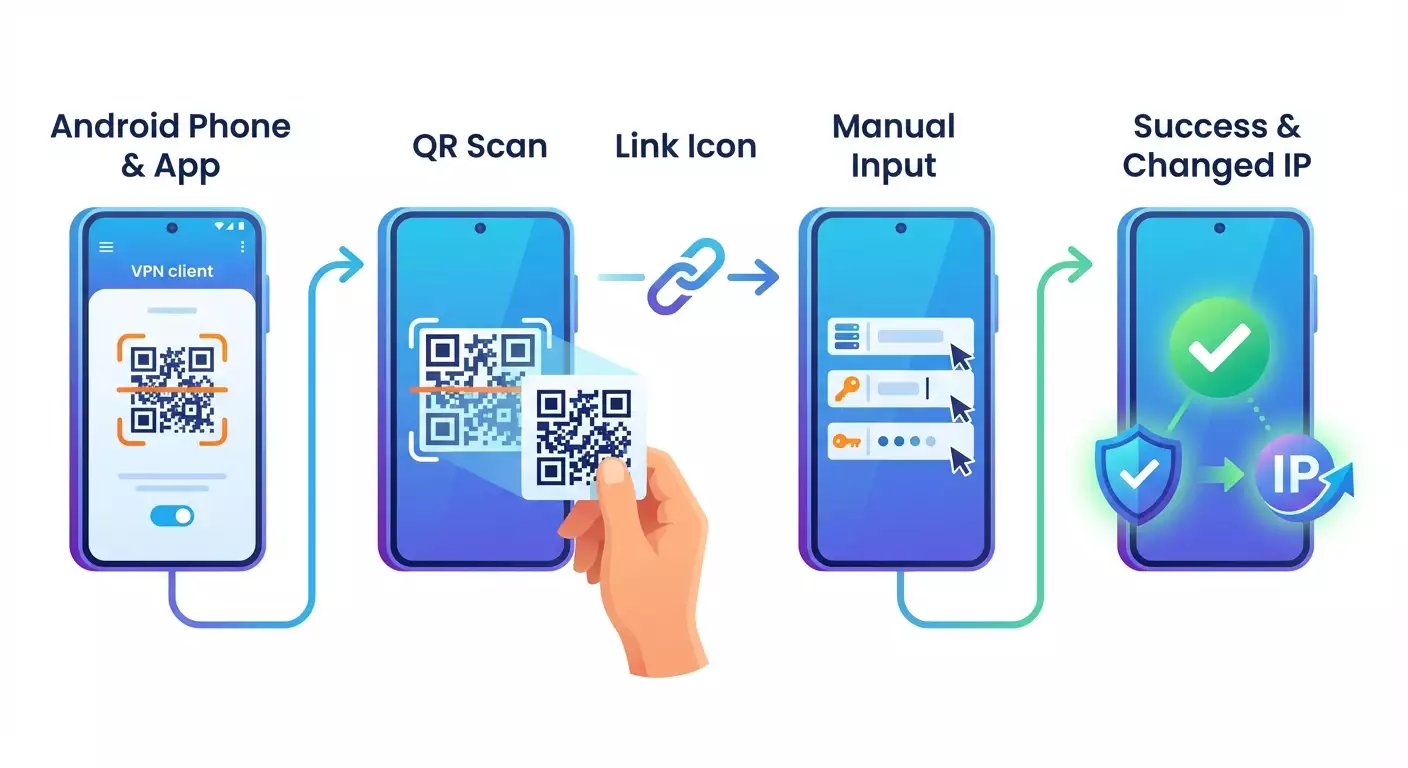
Пошаговый гайд для начинающих по настройке VLESS+Reality на Android через vpn.how. За 15–25 минут вы установите v2rayNG, импортируете профиль тремя способами (QR, vless://, вручную), проверите IP и решите типичные ошибки. Все данные берём из личного кабинета vpn.how.
Содержание статьи
- Введение
- Предварительная подготовка
- Базовые понятия
- Шаг 1: подготовка профиля в личном кабинете vpn.how
- Шаг 2: установка и подготовка v2rayng
- Шаг 3: способ 1 — импорт через qr‑код (самый простой)
- Шаг 4: способ 2 — импорт через ссылку vless://
- Шаг 5: способ 3 — ручная настройка профиля vless+reality
- Шаг 6: подключение и проверка нового ip
- Проверка результата
- Типичные ошибки и решения
- Дополнительные возможности
- Faq
- Заключение
Введение
Этот пошаговый гайд объясняет, как настроить VLESS+Reality для Android через сервис vpn.how. Вы установите клиент v2rayNG, импортируете профиль тремя способами (через QR-код, через ссылку vless:// и вручную), подключитесь и проверите свой новый IP. Мы подробно разберём каждый шаг, дадим советы и укажем частые ошибки, чтобы вы гарантированно получили результат с первого раза.
Для кого этот гайд: для начинающих и продвинутых пользователей Android, которым нужна простая и надёжная инструкция по настройке VLESS+Reality на базе данных из личного кабинета vpn.how.
Что нужно знать заранее: базовые навыки пользования Android, доступ к личному кабинету vpn.how, умение устанавливать приложения из Google Play или APK. Специальных технических знаний не потребуется — всё объясним простым языком.
Сколько времени потребуется: в среднем 15–25 минут, включая установку клиента и проверку подключения. Если будете настраивать вручную, заложите 5–10 минут дополнительно для внимательного ввода параметров.
Совет: Держите открытым личный кабинет vpn.how во время настройки. Там есть все данные подключения: адрес сервера, порт, UUID, Flow (xtls-rprx-vision), Security: Reality, SNI, Fingerprint (chrome), Public Key и Short ID.
Предварительная подготовка
Перед началом убедитесь, что у вас есть всё необходимое и устройство соответствует требованиям. Это избавит от лишних шагов и ошибок далее.
Необходимые инструменты, программы и доступы
- Учётная запись в vpn.how и активный VPN-сервер с профилем VLESS+Reality.
- Смартфон или планшет на Android (рекомендуется Android 8.0 и новее; минимально Android 7).
- Доступ в интернет (Wi‑Fi или мобильная сеть) и возможность открыть личный кабинет vpn.how.
- Приложение v2rayNG из Google Play или APK с официальной страницы проекта.
Системные требования
- Android 7.0 или новее (рекомендуется Android 10+ для лучшей стабильности).
- Свободно 50–100 МБ для установки и работы клиента.
- Стабильное интернет-подключение без портальных страниц (каптивных страниц Wi‑Fi).
Что нужно скачать, установить, настроить
- Установить v2rayNG (из Google Play — предпочтительно; либо APK при отсутствии Play Маркета).
- Открыть личный кабинет vpn.how и найти раздел профиля VLESS+Reality: QR‑код и ссылка vless://, а также все параметры для ручной настройки.
⚠️ Внимание: Если будете ставить APK, включайте установку из неизвестных источников только на время установки и загружайте APK из проверенного источника. После — верните настройку безопасности обратно.
Резервные копии (если актуально)
Если у вас уже есть профили в v2rayNG, перед добавлением новых можете экспортировать текущую конфигурацию в файл из настроек приложения. Это позволит быстро откатиться при необходимости.
✅ Проверка: У вас есть доступ к vpn.how, устройство соответствует требованиям, и вы готовы установить или уже установили v2rayNG.
Базовые понятия
Прежде чем приступать, кратко разберёмся в терминах, чтобы вы понимали, что и почему настраиваем.
- VLESS — современный лёгкий протокол прокси без шифрования уровня потока по умолчанию, обычно используется с защитными обвязками (TLS или Reality). Он надёжен, быстр и широко поддерживается клиентами.
- Reality — технология маскировки трафика без классического TLS-сертификата, использует публичный ключ сервера и параметры типа SNI, Fingerprint и Short ID. Отличается от TLS тем, что не требует реального доменного сертификата, но выглядит как легитимный трафик.
- UUID — уникальный идентификатор вашего профиля. Его нельзя угадывать; берите его строго из личного кабинета vpn.how.
- Flow: xtls-rprx-vision — режим передачи для VLESS + Reality, рекомендованный для современных клиентов. Обеспечивает стабильность и производительность.
- SNI — доменное имя, которое имитируется при установке соединения. Это значение также выдаётся в vpn.how и должно вводиться без ошибок.
- Public Key (публичный ключ сервера Reality) — ключ шифрования стороны сервера для установления сессии Reality. Копируйте строго целиком.
- Short ID — короткий идентификатор для конкретного маршрута/профиля Reality. Вводите точно как в личном кабинете vpn.how.
- Fingerprint — имитация отпечатка браузера (например, chrome) для лучшей правдоподобности трафика.
Главное, что нужно запомнить: все параметры вы берёте из личного кабинета vpn.how. Их нельзя придумывать — иначе соединение не установится.
✅ Проверка: Вы понимаете, что именно будете вводить и зачем: адрес сервера, порт, UUID, Flow, SNI, Fingerprint, Public Key и Short ID доступны в личном кабинете vpn.how.
Шаг 1: Подготовка профиля в личном кабинете vpn.how
Цель этапа
Получить готовые данные для подключения: QR‑код, ссылку vless:// и параметры для ручной настройки VLESS+Reality.
Пошаговая инструкция
- Откройте браузер на Android и войдите в личный кабинет vpn.how.
- Перейдите в раздел вашего VPN-сервера или профиля подключений.
- Найдите пункт «VLESS+Reality». Откройте его.
- Убедитесь, что видите QR‑код и ссылку vless://. Сразу ниже должна быть таблица параметров: адрес сервера, порт, UUID, Flow (xtls-rprx-vision), Security: Reality, SNI, Fingerprint (chrome), Public Key, Short ID.
- Не закрывайте эту страницу. Она понадобится для импорта и/или ручного ввода параметров.
Совет: Сделайте скриншот параметров (не QR) для быстрого просмотра офлайн. Храните скриншот в защищённой папке, так как он содержит приватные данные.
⚠️ Внимание: Не делитесь QR‑кодом, ссылкой vless:// и параметрами ни с кем. Любой, кто получит эти данные, сможет использовать ваш трафик.
✅ Проверка: У вас открыт раздел «VLESS+Reality» в vpn.how, видно QR‑код, ссылку vless:// и все параметры подключения.
Возможные проблемы и решения
- Не видно QR‑кода — обновите страницу или разверните блок «VLESS+Reality».
- Нет активного сервера — создайте сервер в vpn.how и дождитесь статуса «Активен».
- Не удаётся войти — проверьте логин/пароль или восстановите доступ.
Шаг 2: Установка и подготовка v2rayNG
Цель этапа
Установить актуальную версию v2rayNG на Android и подготовить к импорту профиля.
Пошаговая инструкция
- Откройте Google Play на вашем Android.
- В поиске введите «v2rayNG» и откройте карточку приложения от надёжного разработчика.
- Нажмите «Установить» и дождитесь завершения установки.
- Откройте v2rayNG. На первом запуске приложение запросит разрешения — предоставьте их.
- Если Google Play недоступен: скачайте APK v2rayNG с официальной страницы проекта. Включите «Установка из неизвестных источников», установите APK, затем верните настройку безопасности обратно.
Совет: Настройте блокировку экрана (PIN/биометрия). Так вы защитите доступ к параметрам профилей внутри приложений.
⚠️ Внимание: Никогда не скачивайте APK с неизвестных сайтов. Используйте только официальные источники и проверяйте подпись приложения.
✅ Проверка: Приложение v2rayNG установлено и открывается без ошибок. Кнопка «+» для добавления профилей доступна на главном экране.
Возможные проблемы и решения
- Не устанавливается из Play — очистите кэш Play Маркета и повторите попытку.
- APK не открывается — включите установку из неизвестных источников в настройках безопасности.
- Антивирус ругается — проверьте оригинальность источника APK и цифровую подпись.
Шаг 3: Способ 1 — Импорт через QR‑код (самый простой)
Цель этапа
Быстро импортировать профиль VLESS+Reality из личного кабинета vpn.how в одно касание.
Пошаговая инструкция
- Откройте v2rayNG на Android.
- Нажмите кнопку «+» в правом верхнем углу.
- Выберите пункт «Сканировать QR‑код».
- Разрешите доступ к камере, если запрос появится.
- Наведите камеру на QR‑код из раздела «VLESS+Reality» в личном кабинете vpn.how.
- Подтвердите импорт профиля, если приложение спросит.
- При необходимости откройте профиль и проверьте, что поля заполнены: адрес сервера, порт, UUID, Flow: xtls-rprx-vision, Security: Reality, SNI, Fingerprint: chrome, Public Key, Short ID.
- Сохраните изменения (если открывали профиль для проверки).
Совет: Если QR не читается с другого экрана, увеличьте яркость или масштабируйте изображение. Можно также открыть QR на втором устройстве.
✅ Проверка: В списке профилей появился новый профиль с именем, соответствующим серверу vpn.how. Он выбран по умолчанию или доступен для выбора.
Возможные проблемы и решения
- QR не распознаётся — протрите камеру, увеличьте QR или используйте светлую подсветку.
- Импорт с ошибкой — обновите страницу с QR или попробуйте импорт по ссылке vless:// (следующий шаг).
- Поля пустые — убедитесь, что это QR именно с раздела «VLESS+Reality» в vpn.how.
Шаг 4: Способ 2 — Импорт через ссылку vless://
Цель этапа
Импортировать профиль VLESS+Reality без камеры — напрямую из буфера обмена.
Пошаговая инструкция
- В личном кабинете vpn.how откройте раздел «VLESS+Reality».
- Нажмите «Копировать» рядом со ссылкой vless://, чтобы отправить её в буфер обмена.
- Переключитесь в v2rayNG.
- Нажмите «+» в правом верхнем углу.
- Выберите «Импорт из буфера обмена». Приложение обнаружит ссылку vless:// автоматически.
- Подтвердите импорт. Новый профиль появится в списке.
- Откройте профиль, чтобы быстро проверить поля: адрес сервера, порт, UUID, Flow: xtls-rprx-vision, Security: Reality, SNI, Fingerprint: chrome, Public Key, Short ID.
- Сохраните и закройте профиль.
Совет: Если у вас несколько ссылок vless:// в буфере, очистите буфер обмена и скопируйте заново только нужную из vpn.how, чтобы избежать импорта неверного профиля.
✅ Проверка: Новый профиль добавлен, выбран и содержит корректные параметры из личного кабинета vpn.how.
Возможные проблемы и решения
- Кнопка «Импорт из буфера обмена» неактивна — убедитесь, что ссылка vless:// действительно скопирована.
- Импортируется старый профиль — скопируйте ссылку заново и повторите импорт.
- Профиль не подключается — проверьте, что Flow и Security соответствуют Reality и xtls‑rprx‑vision.
Шаг 5: Способ 3 — Ручная настройка профиля VLESS+Reality
Цель этапа
Создать профиль вручную, если импорт по QR или ссылке недоступен, либо нужен полный контроль над полями.
Пошаговая инструкция
- Откройте v2rayNG.
- Нажмите «+» в правом верхнем углу.
- Выберите «Добавить профиль вручную» или «Manual». Затем в типах выберите «VLESS».
- Откроется форма профиля. Введите «Адрес сервера» (Host) ровно как в vpn.how (например, example.com или IP‑адрес).
- Введите «Порт» — строго как в личном кабинете vpn.how (например, 443 или другой порт, указанный в профиле).
- В поле «ID (UUID)» вставьте UUID из vpn.how. Проверьте, что нет пробелов до/после.
- Проверьте «Encryption» или «Шифрование» для VLESS: установите «none» (или оставьте по умолчанию для VLESS, если так указывает клиент).
- Найдите поле «Flow» и установите «xtls-rprx-vision» — строго так, как указано в vpn.how.
- В транспортных настройках (Transport) выберите «TCP» (или оставьте по умолчанию, если VLESS+Reality уже предполагает TCP).
- Откройте раздел «Security» или «TLS/Reality». Установите тип «Reality».
- В поле «SNI/Server Name» введите значение из vpn.how (например, домен мимикрии). Важно: без протоколов http/https, только доменное имя.
- В поле «Fingerprint» выберите «chrome» (или введите chrome, если требуется текстом) — как указано в vpn.how.
- В поле «Public Key» вставьте публичный ключ Reality из vpn.how. Проверьте, что вставлен целиком, без переносов и лишних символов.
- В поле «Short ID» введите короткий ID из vpn.how. Учтите регистр символов; обычно это строка в шестнадцатеричном формате.
- Дополнительно: если присутствует поле «Spider X» (иногда требуется пустое или конкретное значение), оставьте пустым или укажите то, что указано в vpn.how.
- Сохраните профиль, нажав «ОК» или значок «Сохранить».
- Убедитесь, что новый профиль выбран как активный (поставьте галочку или нажмите на него).
Совет: Заполняйте поля по одному и сверяйте с vpn.how после каждого ввода. Это снижает риск опечатки, из-за которой соединение не установится.
✅ Проверка: Профиль сохранён, в нём указаны: адрес сервера, порт, UUID, Flow: xtls-rprx-vision, Security: Reality, SNI, Fingerprint: chrome, Public Key и Short ID — все ровно как в личном кабинете vpn.how.
Важные моменты
- Все данные для подключения берите из личного кабинета vpn.how.
- Любая опечатка в SNI, Public Key, Short ID или UUID приведёт к ошибке подключения.
- Flow должен быть именно «xtls-rprx-vision», если так указано в vpn.how.
Возможные проблемы и решения
- Ошибка «bad request» — проверьте Flow и UUID.
- Ошибка рукопожатия — проверьте SNI, Public Key, Short ID и Fingerprint.
- Не подключается без подробных ошибок — перепроверьте порт и адрес сервера, сравните с vpn.how.
Шаг 6: Подключение и проверка нового IP
Цель этапа
Подключиться к VPN-профилю VLESS+Reality и подтвердить, что трафик идёт через сервер vpn.how.
Пошаговая инструкция
- Откройте v2rayNG и выберите нужный профиль VLESS+Reality (импортированный или созданный вручную).
- Нажмите большую кнопку «Подключить» (обычно значок запуска внизу).
- На запрос «Разрешить создание VPN‑подключения» нажмите «ОК».
- Дождитесь статуса «Подключено» или появления ключика VPN в статус-баре Android.
- Откройте браузер и проверьте IP на любом сервисе определения IP или используйте встроенную проверку в v2rayNG (если доступна).
Совет: Если впервые подключаетесь в мобильной сети, отключите экономию трафика и режим энергосбережения для v2rayNG. Это повысит стабильность.
⚠️ Внимание: Если сеть Wi‑Fi требует авторизации через веб-портал (каптивный портал), сначала авторизуйтесь без VPN, затем включайте VPN. Иначе подключение может не установиться.
✅ Проверка: Статус подключения «Подключено», в шторке Android виден значок VPN. На сайтах проверки IP отображается IP вашего VPN‑сервера, а не IP вашего провайдера.
Возможные проблемы и решения
- При подключении ошибка — перепроверьте параметры профиля с vpn.how, попробуйте переключиться между Wi‑Fi и мобильной сетью.
- Нет интернета после подключения — проверьте DNS‑настройки клиента или перезапустите соединение.
- Лимит трафика — убедитесь, что ваш тариф или сервер активен и не исчерпал квоту.
Проверка результата
Чек‑лист
- Профиль VLESS+Reality добавлен и выбран.
- Клиент v2rayNG показывает статус «Подключено».
- Новый IP подтверждён на сайте проверки.
- Сайты и приложения открываются стабильно.
- Скорость соответствует ожиданиям сети и сервера.
Как протестировать
- Откройте пару сайтов и убедитесь, что они загружаются быстро.
- Проверьте IP‑адрес. Он должен отличаться от вашего реального.
- Запустите любой мессенджер и отправьте сообщение.
- Если нужен UDP (игры/звонки), включите его в настройках клиента и проверьте голосовой вызов.
Совет: Сделайте короткий SpeedTest с включённым VPN, чтобы оценить пропускную способность. Сравните со скоростью без VPN, учитывая шифрование и маршрут.
✅ Проверка: Все пункты чек‑листа выполнены. Подключение стабильно, IP изменён, трафик идёт через сервер vpn.how.
Типичные ошибки и решения
- Проблема: Не подключается, «handshake failed». Причина: Неверные SNI, Public Key или Short ID. Решение: Сверьте с vpn.how и исправьте опечатки. Проверьте Fingerprint: chrome.
- Проблема: Ошибка «bad request». Причина: Неподходящий Flow. Решение: Установите «xtls-rprx-vision» строго по данным vpn.how.
- Проблема: Подключается, но нет интернета. Причина: DNS‑конфликт или режим энергосбережения. Решение: Включите встроенный DNS в клиенте или перезапустите сеть; отключите ограничение фоновой активности для v2rayNG.
- Проблема: Импорт из буфера не видит ссылку. Причина: В буфере другой текст. Решение: Перекопируйте ссылку vless:// из vpn.how и повторите импорт.
- Проблема: QR не сканируется. Причина: Плохое освещение или бликует экран. Решение: Увеличьте QR, повысьте яркость, отодвиньте камеру или используйте способ через ссылку.
- Проблема: Ошибка «ID not valid». Причина: Неверный UUID. Решение: Скопируйте UUID из vpn.how заново и вставьте без пробелов.
- Проблема: Медленная скорость. Причина: Занятая сеть, слабый сигнал, перегруженный узел. Решение: Переключитесь на мобильную/другую Wi‑Fi сеть, смените сервер в vpn.how, попробуйте в другое время.
- Проблема: Отключается через несколько минут. Причина: Энергосбережение Android. Решение: Снимите ограничения батареи для v2rayNG и разрешите работу в фоне.
- Проблема: Не работает в корпоративной сети. Причина: Жёсткие фильтры и прокси. Решение: Попробуйте мобильную сеть или другой порт/сервер из vpn.how.
- Проблема: Приложение не запоминает профиль. Причина: Нет прав на память или сброс данных. Решение: Разрешите доступ к хранилищу и избегайте очистки кэша сторонними клинерами.
Дополнительные возможности
- Выбор приложений через VPN: в v2rayNG включите «Пер‑приложный прокси» и отметьте, какие приложения пускать через VPN или исключить.
- Автозапуск и автоподключение: настройте автоматическое подключение при старте системы для стабильной защиты трафика.
- Kill Switch (при наличии): включите брандмауэр/режим «только через VPN», чтобы трафик не утёк при разрыве соединения.
- UDP‑поддержка: если требуется для игр или звонков, включите передачу UDP в настройках профиля/клиента и протестируйте.
- DNS‑настройки: используйте надёжные резолверы (например, DoH/DoT) внутри клиента для обхода локальных блокировок DNS.
- Резервное копирование профилей: экспортируйте профиль в файл, чтобы быстро перенести на другое устройство или восстановить после сброса.
- Альтернативные клиенты: помимо v2rayNG, можно использовать NekoBox (современный интерфейс, поддержка Reality). Но v2rayNG остаётся самым распространённым.
Совет: Храните экспорт профиля в защищённом хранилище, потому что файл содержит приватные параметры доступа к серверу.
FAQ
- Как настроить VLESS+Reality на Android быстрее всего? Используйте импорт по QR‑коду из личного кабинета vpn.how через v2rayNG: «+» → «Сканировать QR‑код» → подтвердить импорт → подключиться.
- Где взять UUID, SNI, Public Key и Short ID? В личном кабинете vpn.how в разделе «VLESS+Reality». Не используйте сторонние источники — только данные из вашего аккаунта.
- Можно ли использовать один профиль на нескольких устройствах? Обычно да, но учитывайте политику и лимиты vpn.how. Лучше создать отдельные профили для каждого устройства в кабинете.
- Нужно ли включать TLS? Для VLESS+Reality включайте «Security: Reality», а не классический TLS. Все параметры берите из vpn.how.
- Что делать, если скорость ниже ожидаемой? Проверьте сеть (Wi‑Fi против мобильной), нагрузку на сервер, время суток, включите/выключите UDP, сравните с другим сервером из vpn.how.
- Работает ли это на старых Android? Да, обычно с Android 7+, но лучше Android 10+. На старых версиях проверьте совместимость v2rayNG и дайте все разрешения.
- Почему приложения не идут через VPN? Проверьте, не включено ли разделение по приложениям в v2rayNG. Убедитесь, что нужные приложения включены для проксирования.
- Как быстро проверить, что всё настроено верно? Запустите VPN, убедитесь в значке ключа в статус‑баре и проверьте IP на сайте определения IP. Он должен отличаться от вашего провайдерского.
- Чем v2rayNG отличается от NekoBox? Оба поддерживают VLESS+Reality. v2rayNG — наиболее распространён, NekoBox — более современный интерфейс. Выбирайте по удобству.
- Нужно ли менять настройки Fingerprint? Нет, используйте «chrome», если так указано в vpn.how. Изменение Fingerprint может повлиять на совместимость.
Заключение
Вы настроили VLESS+Reality для Android через vpn.how: установили v2rayNG, импортировали профиль удобным способом (QR, vless:// или вручную), подключились и проверили новый IP. Теперь ваш трафик стабильно и незаметно проходит через Reality, а все важные параметры берутся из надёжного источника — личного кабинета vpn.how.
Что делать дальше: при необходимости добавьте второй сервер, настройте автоподключение и список приложений, которые должны идти через VPN. Сохраните резервную копию профиля и периодически проверяйте актуальность данных в vpn.how.
Куда развиваться: изучите дополнительные клиенты (например, NekoBox) и продвинутые параметры DNS/UDP. Освойте профили для разных сценариев — работа, стриминг, игры — и меняйте их в один клик. Не забывайте о безопасности: держите устройство обновлённым и не делитесь данными профилей с третьими лицами.